Executive Summary
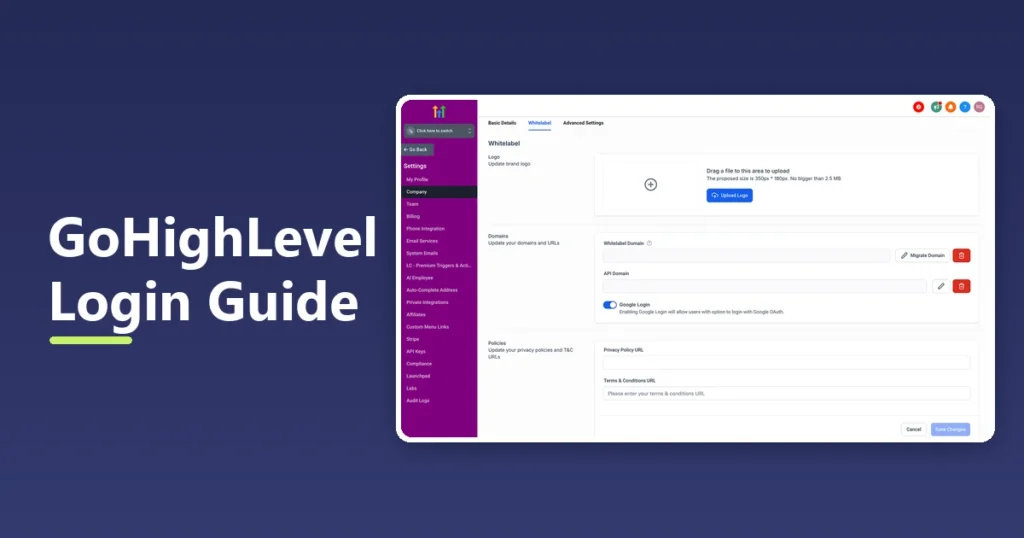
The GoHighLevel login guide starts with one fact: you sign in at app.GoHighLevel.com, not the marketing site. That single URL is where agency owners reach every location and sub-account, and where team members land inside the location their role allows. This walkthrough is for the person holding the credentials — the owner who white-labels clients, the teammate locked out after a password reset, the client who forgot a branded domain. It is not for someone still comparing platforms or hunting a free plan; the trial ends and billing begins at $97/mo for Starter.
Most login problems are self-service. If you follow the checklist below (correct URL, browser state, password reset, 2FA), you can resolve 90% of issues without contacting support.
Table of Contents
- The Official GoHighLevel Login URL
- How to Log In (Step by Step)
- Agency Login, Locations & Sub-Accounts
- Forgot Your Password? Reset It
- Two-Factor Authentication (2FA)
- Common Login Errors & Fixes
- Client Login & White-Label Domains
- Account Security Best Practices
- Build a Login-Security Workflow Inside GoHighLevel
- Two Agencies, Two Login Headaches
- GoHighLevel Login FAQ
- Your Login Is the Front Door to Every Client Account
The Official GoHighLevel Login URL
The official GoHighLevel login page is https://app.gohighlevel.com/login. When you sign up for a trial, you create credentials for the agency-level account, and the same login takes you to the dashboard where all locations appear.
- App URL – app.gohighlevel.com (or /v2/login in newer builds).
- Marketing site – gohighlevel.com is the public site; look for the Login to App link in the top-right corner.
- Agency dashboard – after login you land in the agency account with a list of locations (sub-accounts).
- Location URL – each location may have its own branded subdomain if configured.
Bookmark app.gohighlevel.com. Typing “GoHighLevel login” into search returns the marketing site; the app is where you actually sign in.
How to Log In (Step by Step)
The steps below apply to desktop browsers (Chrome, Edge, Firefox, Safari), the mobile app, and white-label client portals. Bookmark the URL after a successful login to avoid landing on the marketing site later.
- Open your browser and go to https://app.gohighlevel.com/login.
- Enter the email address you used when creating the account.
- Enter your password (passwords are case-sensitive).
- If two-factor authentication is enabled, enter the 6-digit code from your authenticator app.
- Click Login and wait for the dashboard to load.
- Select the location you want to work in from the agency view.
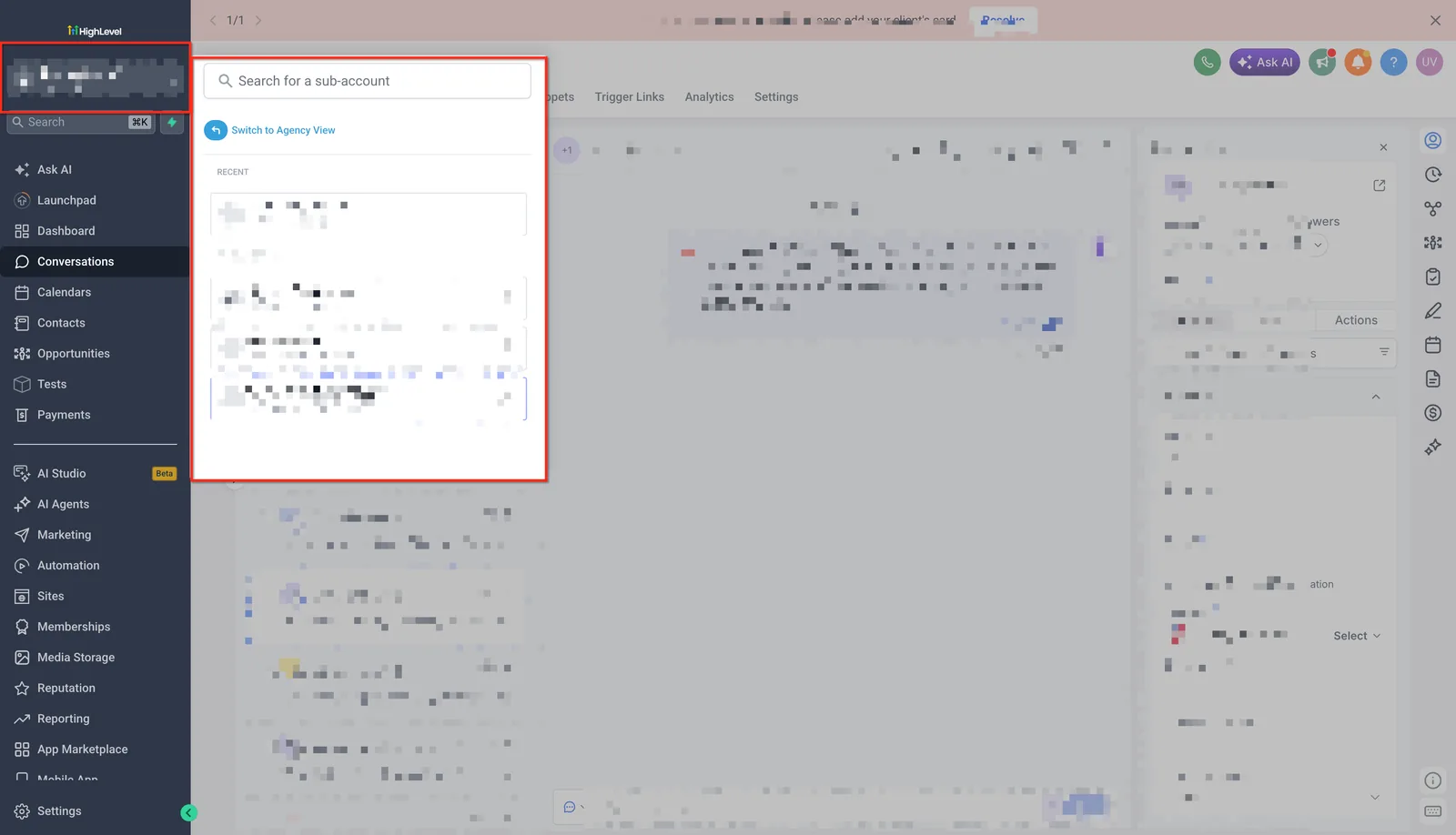
If you have multiple locations, you will see a switcher after login. Choose the location before opening the CRM, pipelines or calendars, because most data is stored per location.
New to the platform? Our beginner tutorial explains what to configure after you log in – business profile, pipeline, form, automation and calendar.
Agency Login, Locations & Sub-Accounts
Agencies manage many businesses from one agency account. Each client is a location (sub-account) with its own contacts, pipelines and automations.
- Log in once at app.gohighlevel.com → you see all locations.
- Click a location to open its workspace; everything you build there is isolated from other clients.
- Use the Agency view for billing, rebilling, SaaS mode, and user permissions.
- Clients you white-label log in on YOUR domain (see the white-label section below), not app.gohighlevel.com.
Our agency guide covers sub-accounts, white label and SaaS mode in detail if you are reselling the platform.
Forgot Your Password? Reset It
If you forgot your password, use the in-app reset – do not create a second account.
- Go to https://app.gohighlevel.com/login.
- Click Forgot Password (or the link under the password field).
- Enter your email address and submit.
- Open the reset email and click the secure link (valid for a limited time).
- Create a new strong password and log in.
If the reset email does not arrive, check spam/promotions and allowlist HighLevel’s email domain. If it still does not arrive after 10 minutes, contact support from the help portal.
Two-Factor Authentication (2FA)
Enable 2FA to protect agency access – especially if you white-label clients or hold many sub-accounts under one login. GoHighLevel supports an authenticator app code on login.
- Open Account Settings → Security/2FA.
- Scan the QR code with Google Authenticator or Authy.
- Save the backup codes in a password manager.
- Enter a confirmation code to activate.
- From now on, login requires your password + 6-digit code.
If you lose your phone with 2FA, use the backup codes; keep them somewhere safe. Support can help recover accounts with proof of ownership.
Common Login Errors & Fixes
The table below covers the most frequent login failures and the fastest fix for each. Work through the left column first – most cases resolve in under five minutes.
| Error | Likely cause | How to fix |
|---|---|---|
| Invalid credentials | Wrong email or password | Use Forgot Password to reset; check Caps Lock and autofill. |
| Page not found on app | Wrong URL or old build | Use app.gohighlevel.com/login; clear DNS/browser cache. |
| Reset email not arriving | Blocklisted or spam | Check spam, allowlist HighLevel domain, wait 10 min, retry. |
| 2FA code rejected | Clock skew / wrong app | Sync device time, use backup codes, re-add authenticator. |
| Redirect loop | Browser cache/cookies | Clear cookies for app.gohighlevel.com, try incognito. |
| Account locked after attempts | Too many failed tries | Wait 15-30 min or contact support to unlock. |
If you keep getting “Invalid credentials” after a password reset, the most common cause is a browser autofill that keeps inserting the old password. Clear the saved password in Chrome or Edge, type the new one manually, then save it again after a successful login.
For teams, check whether the account uses single sign-on (SSO) or a custom login domain. Some agency accounts route through a branded login page, and using the generic URL can show a different or disabled login form.
Diagnosis Checklist (2 Minutes)
- Confirm you are on app.gohighlevel.com/login (not the marketing site).
- Try incognito/private mode to rule out cookies.
- Use the Forgot Password flow instead of guessing.
- Check device time is set to automatic (fixes 2FA).
- Test on another browser or the mobile app.
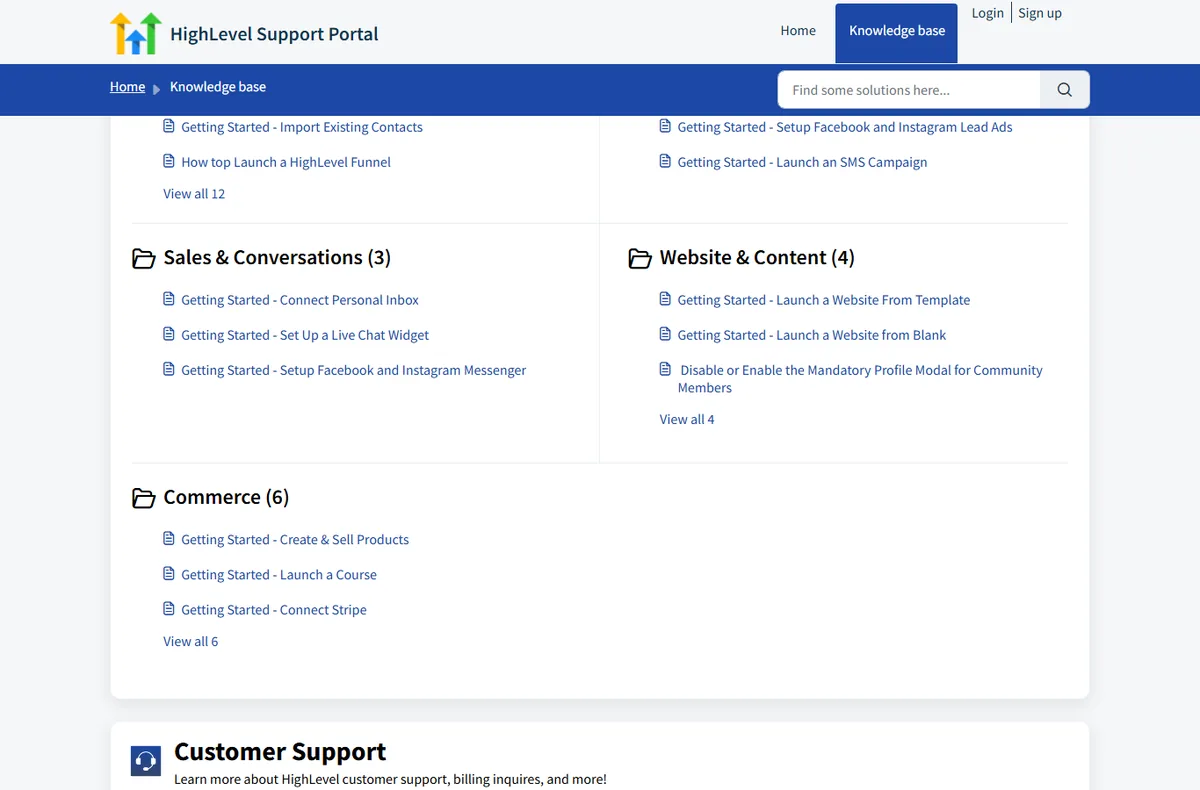
After these five steps, contact support from the HighLevel Support Portal with your account email and the exact error message. Include a screenshot if possible – support usually resolves within hours.
Client Login & White-Label Domains
If you resell HighLevel, your clients may log in on your branded domain instead of app.gohighlevel.com. The login page is custom-branded, but the account is still a sub-account under your agency.

Here is the difference between the three ways people can access a HighLevel account:
| Who | Login URL | What they see |
|---|---|---|
| Agency owner | app.gohighlevel.com | All locations, billing, SaaS mode, user permissions |
| Team member | app.gohighlevel.com (assigned location) | Only the locations and tools their role allows |
| Client (white label) | Your branded domain | Their own location with your logo and colors |
- Configure the custom domain under Agency Settings → White Label.
- Send clients the branded login URL.
- Set per-client user permissions so they only see their location.
- Use SaaS mode billing if you charge clients monthly.
For a complete walkthrough of white-label setup and SaaS mode, see our agencies guide.
One common situation: a client forgets their branded login URL and searches for “GoHighLevel login”. Walk them through the white-label URL you configured, add a bookmark on their device, and reassure them that the agency account is never exposed – clients only see their own location. This prevents confusion and support tickets.
If you manage multiple client logins, create a simple client onboarding document with: the branded URL, the initial password policy, the 2FA requirement, and a note that they should contact you (not HighLevel support) for billing questions because you control the agency account.
Account Security Best Practices
- Use a unique, strong password – never reuse the password from other sites.
- Enable 2FA on the agency account and require it for teammates.
- Use team logins instead of sharing one account (each user has permissions).
- Audit active sessions – log out devices you no longer use.
- Beware phishing – only log in at app.gohighlevel.com and branded domains you control.
Here is a simple routine for keeping the account clean every month:
- Review the team member list and remove anyone who left.
- Check active sessions/devices and revoke unknown ones.
- Rotate the agency password if any teammate departed.
- Confirm 2FA is still enabled on the owner account.
- Export a backup of contacts and pipelines if you are migrating.
GoHighLevel supports the mobile app (iOS and Android) for conversations, calendars and pipelines. If you have trouble on the mobile app but the desktop works, reinstall the app or update it – that usually fixes stale session tokens. Use the desktop web app for heavy configuration and the mobile app for quick responses.
Build a Login-Security Workflow Inside GoHighLevel
You can automate the follow-up that keeps agency access clean. This flow runs when a new team member or client is added and nudges them through 2FA and the correct URL.
- Trigger: Contact Tag — applied when you tag a new client contact ‘client-onboard’.
- Action: Send Email — subject ‘Your login URL for [location name]’, body ‘Sign in at the branded domain we set up for you, not app.GoHighLevel.com. Your username is {{contact.email}}. Reply here if the page does not load.’
- Wait: 1 day.
- Action: Send SMS — ‘Quick check: were you able to open your dashboard at the branded link? Reply YES or NO.’
- Wait: until the contact replies, with a 2-day cap.
- If/Else: check whether the reply contains ‘NO’. If yes, Action: Internal Notification to the account owner with the contact name, then Action: Add Task ‘Call client about login URL’ due in 1 day. If no, Action: Add Contact Tag ‘login-confirmed’.
- Action: Send SMS — ‘One more step for security: open Settings, turn on two-factor authentication, and save your backup codes somewhere safe.’
- Wait: 3 days.
- If/Else: check for tag ‘2fa-enabled’. If yes, Action: Remove from Workflow. If no, Action: Send Email — ‘Your account is still missing 2FA. Here is the 30-second setup: scan the QR code in Settings with Google Authenticator or Authy, then enter the 6-digit code to confirm.’
- Action: Create/Update Opportunity — stage ‘Secured’, so the owner sees who finished setup.
Measure two numbers: the share of new contacts who reach ‘login-confirmed’ within 48 hours, and the share who add the ‘2fa-enabled’ tag within a week. If either drops, shorten the first email and name the branded URL in the subject line.
Two Agencies, Two Login Headaches
Imagine a white-label agency in Austin, Texas, running 14 client sub-accounts under one agency login. The owner shares the agency password with two contractors because setting up team users felt slow. One contractor leaves, and nobody rotates the password. Every client still logs in on the branded domain, but the agency side is now a single point of failure — and the owner cannot tell which device opened which location last week. The fix is not technical: create separate team logins, turn on 2FA for the owner account, and revoke old sessions. The arithmetic is simple — 14 clients times one shared password equals 14 reasons to audit access this month.
Now consider a solo consultant in Portland, Oregon, with 6 sub-accounts and a client in a different time zone who keeps getting “2FA code rejected.” The consultant’s phone clock drifted, so the 6-digit code arrives out of sync. The consultant switches device time to automatic, saves backup codes in a password manager, and sends the client a one-page note with the branded URL and a reminder to contact the agency — not HighLevel support — for billing. Six clients, one documented login routine, and the support tickets stop. This scenario is illustrative only and does not describe any actual account.
GoHighLevel Login FAQ
How do I log into GoHighLevel? Go to https://app.gohighlevel.com/login, enter the email and password from your account, complete 2FA if enabled, and select your location from the agency dashboard.
What is the GoHighLevel login URL? The official app URL is app.gohighlevel.com (or app.gohighlevel.com/v2/login in newer builds). gohighlevel.com is the marketing site with a Login to App link.
Why is my GoHighLevel login not working? Common causes: wrong email/password, cookies/cache, clock skew breaking 2FA, or an account lock after failed attempts. Reset your password, clear cookies, sync device time, then retry.
How do I reset my GoHighLevel password? On the login page click Forgot Password, enter your email, open the reset link, and create a new password. Check spam if the email does not arrive.
Does GoHighLevel have two-factor authentication? Yes. You can enable 2FA with an authenticator app (Google Authenticator or Authy). After enabling, login requires your password plus a 6-digit code.
Can clients log in to GoHighLevel on my agency domain? Yes. With white label, clients log in on your custom branded domain, while you manage everything from your agency account at app.gohighlevel.com.
Is GoHighLevel login safe? Yes when you follow best practices: use a unique strong password, enable two-factor authentication, avoid sharing the agency login among teammates, and only sign in at app.gohighlevel.com or a branded domain you control.
Is the GoHighLevel login page down? Occasionally HighLevel performs maintenance. Check the status page or the HighLevel community; if the app is up for others, clear your browser cache, try incognito, and retry the login.
Is GoHighLevel free to use? No – after the 14-day free trial, GoHighLevel is a paid subscription starting at $97/mo for Starter. There is no permanent free plan, although some partner offers add trial bonuses.
Is GoHighLevel login the same for agencies and clients? No. Agency owners and team members log in at app.gohighlevel.com, while white-label clients log in on your branded domain. Both are part of the same agency account hierarchy.
Your Login Is the Front Door to Every Client Account
Every month without a login routine keeps costing you: shared agency passwords, clients searching for the wrong URL, 2FA codes rejected because a phone clock drifted, and support tickets that eat billable hours. The first step is small — bookmark app.GoHighLevel.com, confirm 2FA on the owner account, and write the branded URL into a one-page client note. Do that today, before the next lockout forces the issue. If you are still evaluating the platform, read GoHighLevel pricing plans, why users quit GoHighLevel, and GoHighLevel alternatives compared before you commit.
If you are new to the platform, start with the beginner tutorial to know what to do after the login screen.
Disclaimer: We are an independent review site. Some links in this article are affiliate links, and we may earn a commission at no extra cost to you if you purchase through them. We only recommend tools we test in real client operations.
About the Author

Antonio Vance is B2B SaaS Operations Director & Lead Reviewer (SaaSFlowLab Editorial Team). He has spent 8+ years deploying and auditing enterprise CRM, marketing automation, and email deliverability infrastructures for digital agencies. At SaaSFlowLab, he directs hands-on testing of software stacks in live production environments to deliver uncompromised, field-verified software reviews.