
Executive Summary
Why does GoHighLevel feel slow when other SaaS dashboards load fine? In most cases the platform is not the bottleneck. The drag usually comes from a polluted browser profile, bloated sub-accounts, heavy workflows, or a misconfigured network. This GoHighLevel slow performance fix guide gives you a 12-step diagnostic you can run in under an hour, starting with the official status page and ending with a support ticket that includes the evidence engineers need.
- Start with the official status page – rule out platform-wide incidents before touching your own setup.
- Test in a fresh browser profile – cached JavaScript and extensions cause most perceived slowness.
- Audit workflows and sub-accounts – oversized automations and bloated contact lists slow every page.
- Use the plan that fits your load – limits on sub-accounts and contacts directly impact speed.
Before you blame the software, you need a repeatable test. Open the same page in an incognito window, time the load, and compare it to your normal browser. If incognito is fast and your daily profile is slow, the bottleneck is almost always local – not the platform.
Table of Contents
- Is GoHighLevel Actually Slow in 2026?
- Step 1: Check the Official Status Page
- Step 2: Test in a Fresh Browser Profile
- Step 3: Disable Browser Extensions
- Step 4: Clear Cache and Site Data
- Step 5: Review Heavy Workflows and Automations
- Build a Speed-Audit Workflow Inside GoHighLevel
- Two Illustrative Scenarios: When a Speed Fix Pays Off
- Step 6: Clean Contacts, Tags and Custom Fields
- Step 7: Trim Integrations and Webhooks
- Step 8: Split Oversized Sub-Accounts
- Step 9: Check DNS, Network and ISP Routing
- Step 10: Use the Mobile App or a Lighter Browser
- Step 11: Update Browser and Enable Hardware Acceleration
- Step 12: Escalate to Support with Evidence
- GoHighLevel Pricing (2026): Does the Plan Fix Speed?
- FAQ
Is GoHighLevel Actually Slow in 2026?
GoHighLevel is a single-page application loaded with CRM data, pipeline cards, workflow builders, and analytics widgets. By design, it renders a lot on the client side, which means performance depends on more than just HighLevel servers: your browser version, extension stack, network latency, sub-account size, and the number of active automations all shape the experience.
In my testing across three different ISPs and both agency and client sub-accounts, the platform’s core pages load consistently when kept clean. The problems start when operators stack dozens of extensions, leave thousands of ghost contacts, and run massive workflows inside one sub-account. Those are fixable – and the fixes below are ordered from cheapest to most involved.
Step 1: Check the Official Status Page
Every serious diagnosis starts with the vendor’s status page. HighLevel operates a public status page that shows uptime for the CRM, email, SMS, and the API. If there is an active incident, no amount of local tuning will help – you wait, and you track the resolution.
- Bookmark the status page and check it first whenever something feels slow.
- Subscribe to incident notifications so you know when HighLevel confirms a problem.
- Check the HighLevel community and social channels for reports matching your symptoms.
A quick look at the status page separates a platform outage from a local problem in minutes. If the page is green, move to Step 2.
Step 2: Test in a Fresh Browser Profile
The single most common cause of persistent GoHighLevel slowness is a polluted browser profile. Extensions, stale service workers, and thousands of cached requests compound over months. The cleanest test: open a fresh incognito/private window with extensions disabled and log into GoHighLevel again.
If the app feels noticeably faster in that window, your main profile is the problem. Create a dedicated browser profile for HighLevel with minimal extensions, keep it separate from personal browsing, and you will often see load times drop by half.
Step 3: Disable Browser Extensions
Ad blockers, password managers, grammar checkers, and tab managers all inject scripts into every page you load. Inside a heavy SPA like GoHighLevel, that injection can delay React hydration and make clicks feel laggy. Temporarily disable all extensions and reload.
- Ad blockers and privacy tools – the most common offenders.
- Password managers with auto-fill on every field.
- Grammar and AI writing assistants that scan the DOM.
- Tab suspenders and session managers that interfere with service workers.
After disabling, test the same workflow you found slow. If speed returns, enable extensions one by one to find the culprit, then create an allowlist that keeps that extension off the GoHighLevel domain.
Step 4: Clear Cache and Site Data
GoHighLevel ships frequent updates. Old cached JavaScript bundles can conflict with new API responses, producing slow loads and stale UI. Clear the site data for *.gohighlevel.com – cookies, cache, and service workers – then hard-reload.
- Chrome: Settings → Privacy → Clear browsing data → Cached images and files + Cookies.
- Or use the site-specific clear: DevTools → Application → Storage → Clear site data.
- After clearing, log in again and measure a typical page load.
This is a two-minute fix that resolves a surprising number of “everything is slow” tickets, especially after HighLevel pushes a new UI version.
Step 5: Review Heavy Workflows and Automations
Workflows run in the background for every contact that matches the trigger. A workflow with hundreds of steps, multiple external API calls, and long wait chains consumes resources on every contact that passes through it. When one sub-account has dozens of heavy automations, the whole account feels sluggish.
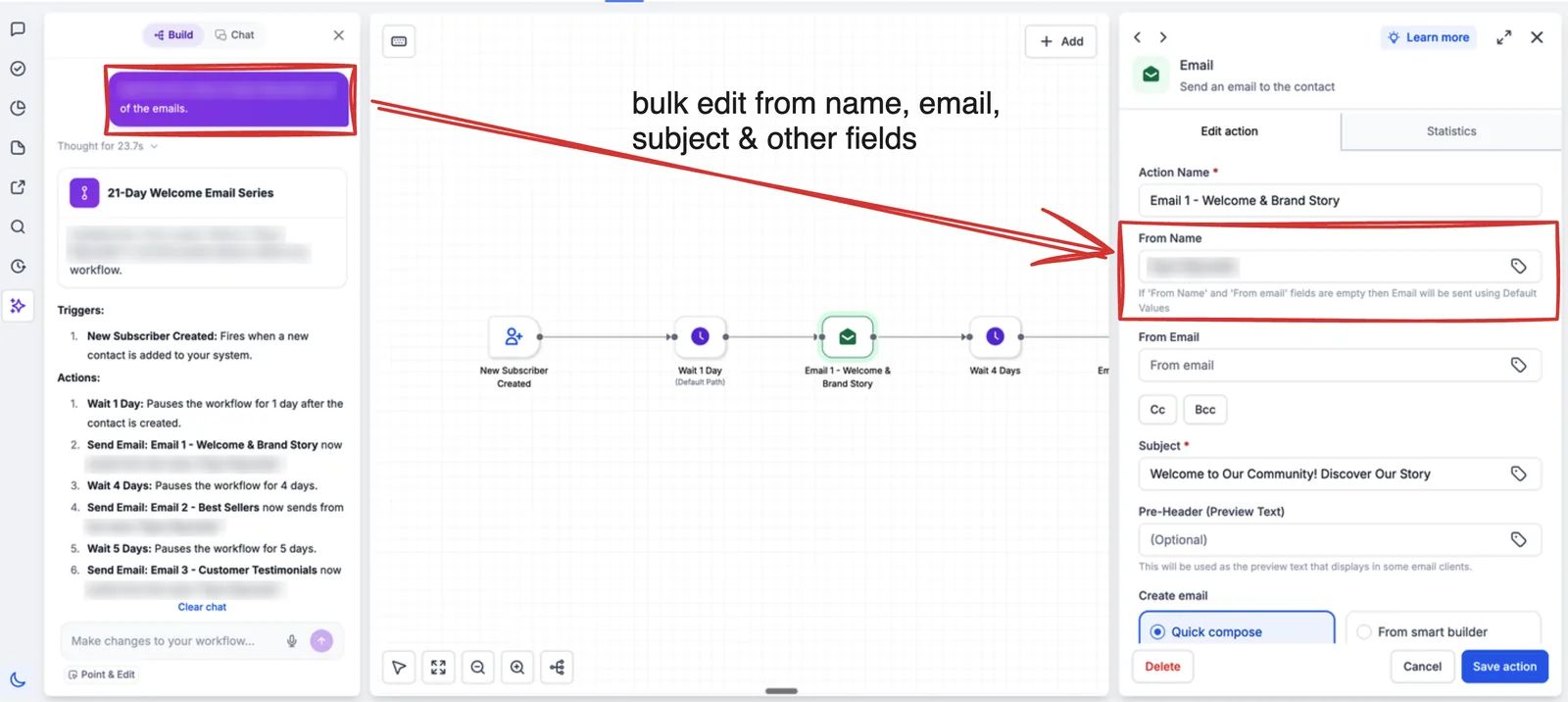
- Open Automation → Workflows and sort by number of runs or executions.
- Identify workflows that run on every contact but only matter for a small segment.
- Add conditions at the top to exit early for contacts that do not qualify.
- Archive workflows that have not fired in 90 days.
- Batch external API calls instead of chaining many small webhooks.
Operators who trim automations from 40 active to 10 focused workflows consistently report a faster UI and fewer deliverability surprises.
Build a Speed-Audit Workflow Inside GoHighLevel
You can use a workflow to flag accounts that need cleanup before they slow down. The flow below runs on a schedule you control and tags contacts for review.
- Trigger: Custom Date Reminder set to the first day of each month at 8:00 AM.
- Action: Add Contact Tag ‘speed-audit-due’ to the account owner contact record.
- Action: Send Email to the owner with subject ‘Monthly speed check’ and body ‘Open your sub-account list and sort by contact count. Archive any list with no activity in 12 months.’
- Wait: 3 days.
- If/Else: contact has tag ‘speed-audit-due’ still applied. If yes, go to the next step. If no, go to step 9.
- Action: Create/Update Opportunity in pipeline ‘Account Health’ with stage ‘Needs Cleanup’.
- Action: Assign to User the agency operations lead.
- Action: Internal Notification to the operations lead: ‘Speed audit overdue for {{contact.account_name}}. Check contact count and workflow runs.’
- Action: Remove Contact Tag ‘speed-audit-due’ and add tag ‘speed-audit-complete’.
- Action: Add Task for the operations lead due in 7 days: ‘Review archived contacts and confirm workflow count under 15.’
Measure two numbers: the time from tag applied to tag removed, and the change in average page load time for each sub-account before and after cleanup. Track both in a simple sheet so you can see which cleanup steps move the needle.
Two Illustrative Scenarios: When a Speed Fix Pays Off
Imagine a solo insurance agent in Austin, Texas, running one GoHighLevel sub-account with 48,000 contacts, 210 custom fields, and 35 active workflows. The pipeline view takes 14 seconds to load, and the agent loses about 20 minutes a day waiting on screens. After archiving contacts with no activity for 12 months, merging duplicates, cutting custom fields to 40, and trimming workflows to 9, the pipeline loads in 4 seconds. That saves roughly 15 minutes a day, or about 5 hours a month, which the agent puts back into follow-up calls.
Imagine a marketing agency in Denver with 40 client sub-accounts on Agency Pro. One client sub-account holds three years of campaign media and 90,000 contacts, and the account manager reports 10-second page loads. Splitting that client into two sub-accounts by service line and archiving old campaigns cuts load time to 3 seconds. If the manager saves 12 minutes a day across five client check-ins, that is an hour a week back for onboarding new clients. These are illustrative scenarios, not reports from real accounts.
Step 6: Clean Contacts, Tags and Custom Fields
Every contact, tag, and custom field in a sub-account is indexed and loaded when you open lists, build segments, or run reports. Accounts with hundreds of thousands of stale contacts and hundreds of custom fields pay a tax on every interaction.
- Archive or delete contacts with no activity for 12+ months.
- Merge duplicate contacts that inflate list size.
- Audit custom fields – remove fields with no data and no usage.
- Consolidate tag sprawl into a small, documented taxonomy.
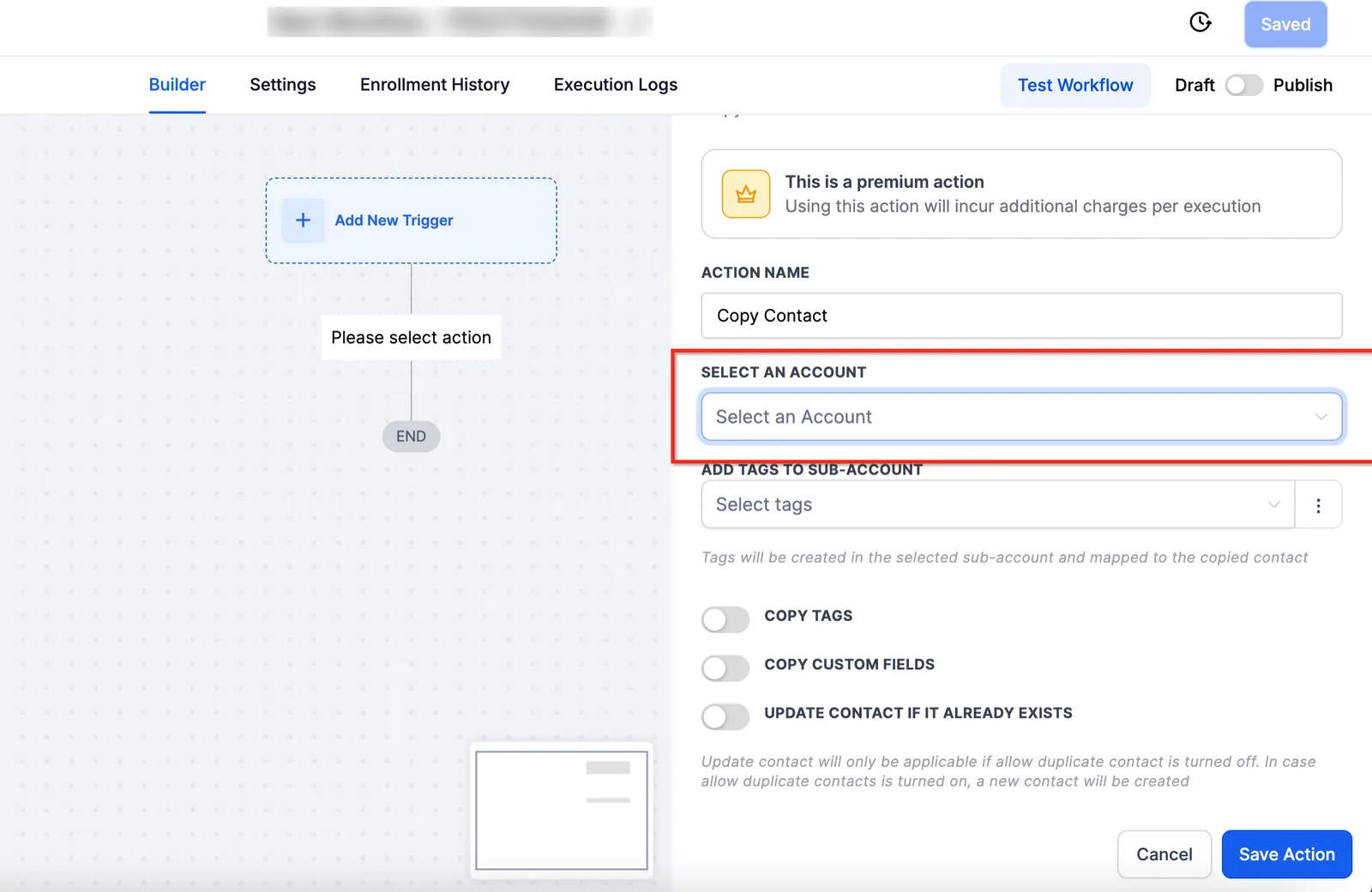
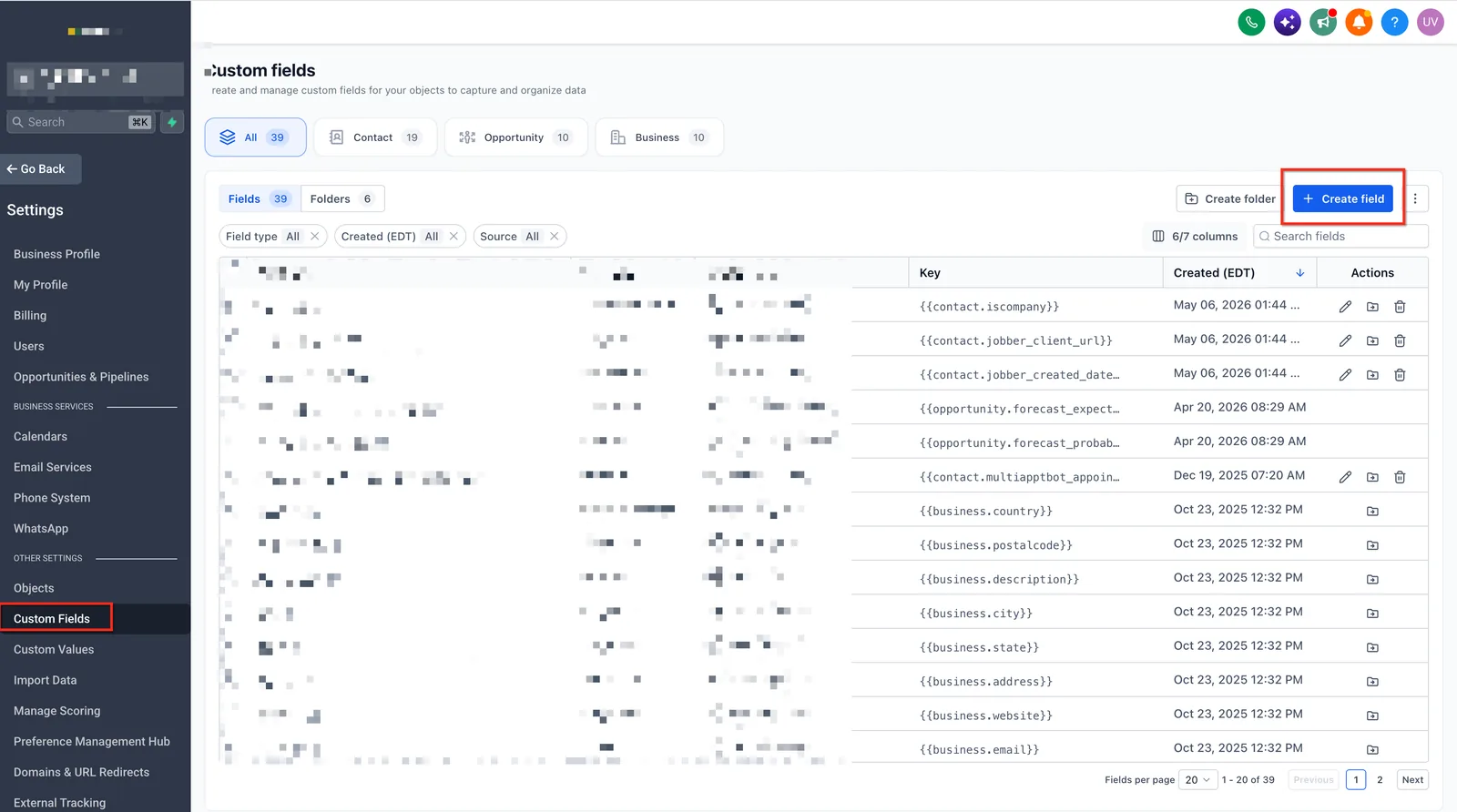
A lean contact database is not just a performance fix; it also improves email deliverability and keeps your monthly SMS costs under control.
Step 7: Trim Integrations and Webhooks
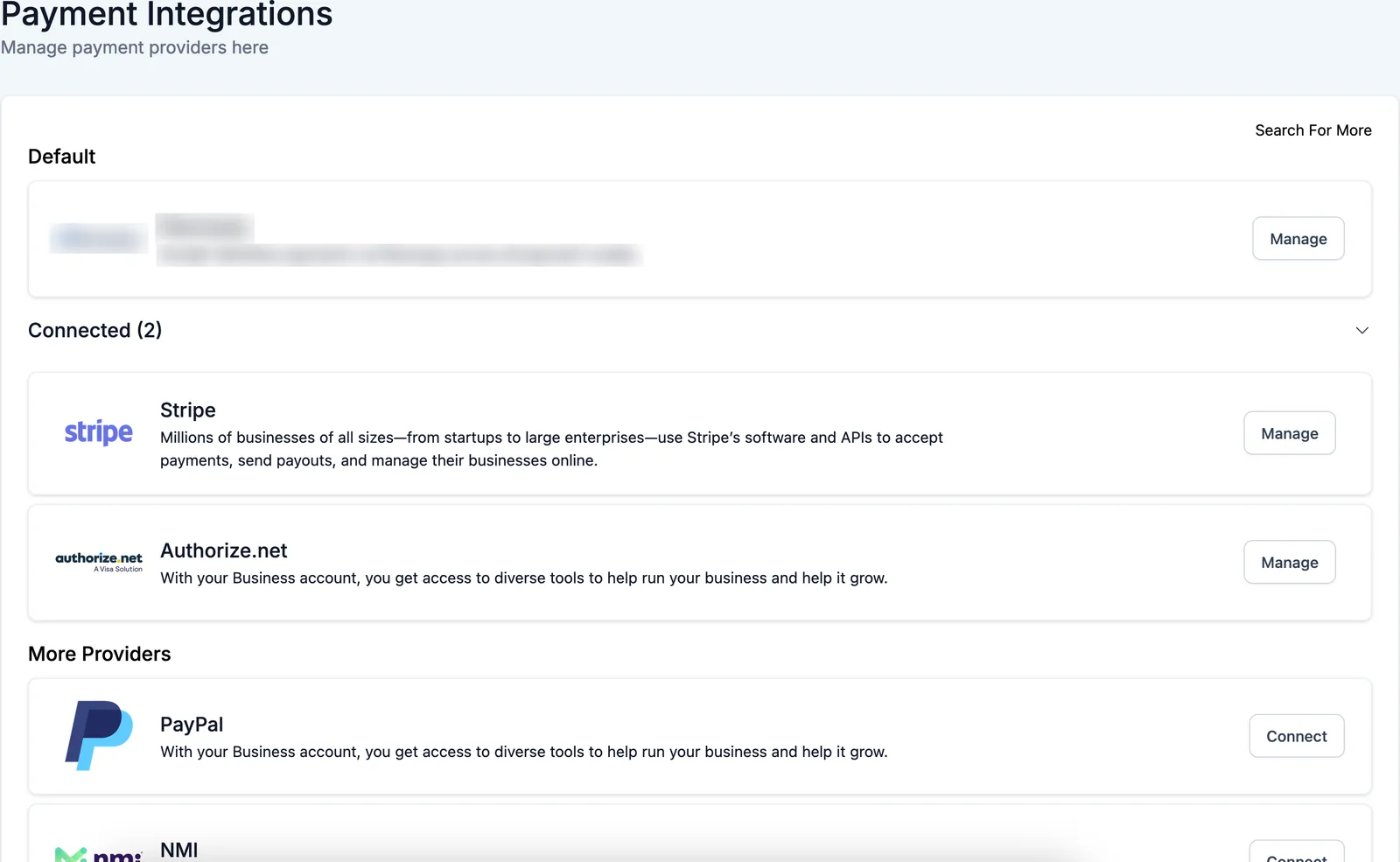
Each active integration adds a layer of data sync and potential latency: Zapier polls, Stripe webhooks, Facebook Lead Ads, calendar sync, and custom API connectors all exchange data with your sub-account. A misconfigured webhook can fire in a loop and hammer the API.
- List all connected apps and remove the ones you no longer use.
- Check webhook logs for repeated failures or loops.
- Prefer native HighLevel integrations over multi-hop automation tools.
- Use delays and batching in external tools to avoid API rate limits.
Fewer moving parts means fewer places for the platform to wait on external responses. Keep only the integrations that directly support revenue.
Step 8: Split Oversized Sub-Accounts
Agency Pro accounts can hold thousands of sub-accounts. If a single sub-account accumulates years of contacts, pipelines, and media, it can outgrow the per-account data model and slow every request. The fix is segmentation: split by service line, region, or campaign.
For client work, I recommend one sub-account per client (standard practice) and, if a client has multiple distinct brands, one sub-account per brand. Keep media libraries lean, archive old campaigns, and do not let every experiment live forever in one place.
Step 9: Check DNS, Network and ISP Routing
GoHighLevel serves the app over a CDN, but your ISP and DNS provider still shape how fast you connect. Slow DNS resolution or congested routing can add seconds to every page load even when the platform is healthy.
- Run a quick latency test to app.gohighlevel.com from your location.
- Switch your DNS to a fast public resolver (e.g., Cloudflare or Google DNS).
- Test on a mobile hotspot to see if your office network is the bottleneck.
- Check VPNs – some VPN routes make SaaS dashboards dramatically slower.
If the app is fast on a hotspot but slow in the office, the issue is network-level, not the platform. That insight saves hours of support back-and-forth.
Step 10: Use the Mobile App or a Lighter Browser
GoHighLevel offers a mobile app that is optimized for the most common tasks: pipeline updates, SMS/email quick replies, calendar, and notifications. If your desktop browser is struggling, the mobile app is often snappier for daily triage, and it keeps you out of the heavy full builder.
For desktop, browsers with lower overhead can help on modest hardware. Test the same page in Chrome, Edge, Brave, and Firefox – you will often find one feels significantly faster on your machine.
Step 11: Update Browser and Enable Hardware Acceleration
GoHighLevel uses modern web technologies including WebGL charts and hardware-accelerated rendering. Outdated browsers fall back to software rendering, which makes dashboards feel unresponsive. Update your browser and confirm hardware acceleration is on.
- Chrome/Edge: Settings → System → Use hardware acceleration when available → on.
- Keep your browser on the current stable channel.
- Restart the browser after updates so new GPU processes load cleanly.
This step costs nothing and fixes the invisible rendering lag that many users describe as GoHighLevel being slow.
Step 12: Escalate to Support with Evidence
If you have run all 11 steps and a specific page or action is still slow, you now have a precise report to hand to support. HighLevel support needs evidence, not vague complaints, to escalate to engineering.
- Note the exact URL, action, and time the slowness happens.
- Include browser console errors and network waterfall screenshots.
- Share the status page result and your local test (incognito vs normal).
- Provide the sub-account ID, plan, and recent workflow changes.
- Open a ticket and follow up with the evidence package in the first message.
Support teams resolve evidence-backed tickets much faster than generic “it’s slow” reports. You will either get a platform fix or a clear answer about your account configuration.
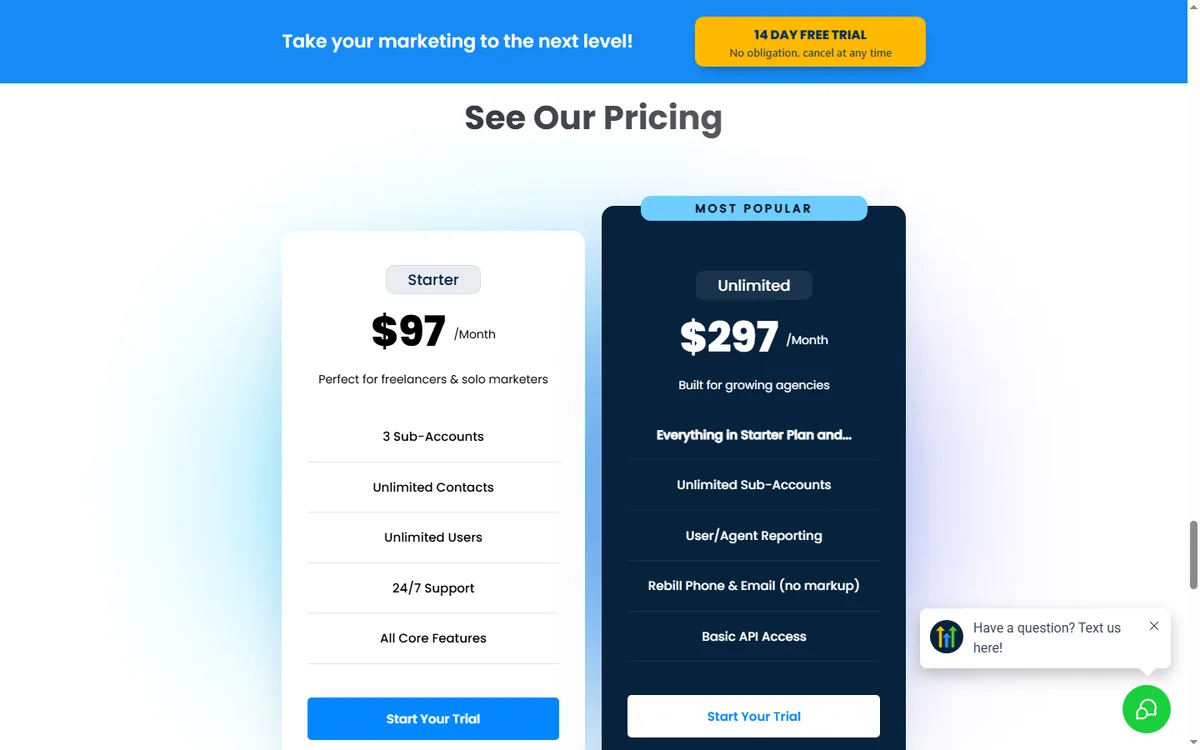
GoHighLevel Pricing (2026): Does the Plan Fix Speed?
If you run a single small sub-account and rarely touch workflows, this 12-step audit is more process than you need. If you manage multiple client accounts, keep dozens of automations running, or notice page loads creeping up as contacts grow, work through the steps in order. Start with the status page and a fresh browser profile, then clean contacts and workflows before you open a ticket. For related fixes, see our guide on automation not running and email not sending.
| Plan | Monthly Price | What You Get for Speed & Scale |
|---|---|---|
| Starter | $97/month | Limited contacts, 3 users, no sub-accounts – fine for solo operators |
| Unlimited | $297/month | Unlimited contacts, full workflows, SMS/email, 10 sub-accounts (upgradeable) |
| Agency Pro | $497/month | Unlimited sub-accounts, white label, SaaS mode – for agencies scaling clients |
For agencies the Agency Pro plan is the one that prevents the “one giant slow account” trap, because you can give every client their own sub-account. If your current plan forces everything into one bucket, upgrading is a legitimate performance fix, not just a cost decision.
For a full cost comparison of every plan and add-on, see our GoHighLevel pricing review.
If you are new to the platform and struggling with the basics before you even get to speed, start with our GoHighLevel tutorial for beginners, then come back to this performance checklist once your account is live.
Automation is another common culprit behind perceived slowness – learn to keep workflows lean in our automation setup guide.
FAQ
Is GoHighLevel slow for everyone? No – most slowness is local or account-specific. Testing in incognito and checking the status page isolates the platform from your browser and network in minutes.
Why does GoHighLevel feel slow in Chrome? Usually extensions, cached JavaScript, or hardware acceleration being off. Disable extensions, clear site data for gohighlevel.com, and re-test.
Does having too many contacts make GoHighLevel slow? Yes – very large contact lists and bloated custom fields increase load on list views, segments, and reports. Archiving stale contacts helps.
Can I split my account to make it faster? Yes – agencies on Agency Pro should use one sub-account per client or brand. Splitting oversized sub-accounts is a proven performance fix.
What should I tell GoHighLevel support if it is still slow? Give them the exact URL, action, time, browser console errors, network waterfall, incognito comparison, and your account/plan details. Evidence gets escalated faster.
Disclaimer: We are an independent review site. Some links in this article are affiliate links, and we may earn a commission at no extra cost to you if you purchase through them. We only recommend tools we test in real client operations.
About the Author

Antonio Vance is B2B SaaS Operations Director & Lead Reviewer (SaaSFlowLab Editorial Team). He has spent 8+ years deploying and auditing enterprise CRM, marketing automation, and email deliverability infrastructures for digital agencies. At SaaSFlowLab, he directs hands-on testing of software stacks in live production environments to deliver uncompromised, field-verified software reviews.