
Executive Summary
You built the follow-up flow, published it, and watched the enrolment count stay at zero while new form submissions piled up in the contact list. Nothing in the builder looks broken, yet the automation is not running. The cause is almost always one of eleven fixable items: a workflow left in Draft, a trigger filter that can never match, re-entry rules blocking a repeat contact, a wait step holding people in place, a failed action, a dead integration, or a test that never validated the path. This GoHighLevel automation not running fix guide gives you the diagnostic order and the exact places to look.
Before you rebuild anything, understand this: GoHighLevel workflows almost never “stop working” on their own – something specific changed. A trigger filter, a connection, a re-entry toggle, or a wait step. The fastest path is to read the enrolment count and the workflow history, because GHL records exactly where each contact got stuck. See our GoHighLevel pricing review 2026 if you are still evaluating the platform.
Table of Contents
- Quick Diagnosis: Where Did It Stop?
- Check 1: Workflow Status (Draft or Paused)
- Build a Self-Checking Workflow That Flags Its Own Failures
- Two Scenarios: A Stuck Funnel and a Silent Webhook
- Check 2: Trigger Filter and Entry Conditions
- Check 3: Re-entry Rules and Multiple Enrollments
- Check 4: Wait Steps and Timezones
- Check 5: Action-Level Errors (Email, SMS, Webhooks)
- Check 6: Broken Integrations and Webhook Timeouts
- Check 7: Contact, Tag and List State
- Check 8: If/Else Branches and Empty Fields
- How to Test a Workflow Without Spamming Real Leads
- Prevention: 5 Automation Health Habits
- FAQ
- Your Fix Order: Status, Filter, Re-entry, Wait, Action
Quick Diagnosis: Where Did It Stop?
Start with the fastest signal: open the workflow and read the enrolment count and workflow history. GHL tracks every contact that entered and every step they passed. The three questions to answer:
| Symptom | What it means | Jump to |
|---|---|---|
| 0 enrolments | The trigger or filter never matched any contact | Check 2 and 3 |
| Enrolled, stuck at a step | A wait step, action, or integration is failing mid-flow | Check 4 and 5 |
| Enrolled, finished, no output | The action fires but the message/integration drops | Check 6 |
If the workflow shows contacts enrolled and a specific step shows an error icon, click it – the exact error message tells you which check below to run. Do not guess.
Check 1: Workflow Status (Draft or Paused)
The single most common reason a GoHighLevel automation “is not running” is that the workflow is sitting in Draft or Paused, not Published. A draft workflow looks perfectly built but never enrols anyone.
- Open Workflows and click the workflow you think is broken.
- Look at the status badge at the top – Draft, Paused, or Published.
- If it is Draft or Paused, click Publish to activate it.
- Check the enrolment count after publishing – it should start rising.
Pro tip: GoHighLevel does not auto-publish workflows. Every time you duplicate a workflow or restore from a template, the copy is a draft. Agencies lose days when a cloned flow never went live.
Build a Self-Checking Workflow That Flags Its Own Failures
Instead of waiting for a client to report that nothing happened, build a small watchdog workflow that tests the main flow and alerts you when a step fails. Use a dedicated test contact and a tag that only you apply.
- Trigger: Contact Tag. Set the tag to qa-test-run. This is the only way the watchdog starts, so real leads never enter it.
- Action: Add Contact Tag. Add qa-in-progress so you can see the run started.
- Action: Send SMS. Write: ‘QA check started for {{contact.first_name}}. Reply DONE when you get this.’ Send to your own number only.
- Wait: Fixed delay of 5 minutes. This gives the SMS time to arrive and gives you a window to reply.
- If/Else: Check whether the contact replied. Condition: Customer Replied is true. On the yes path, continue to step 6. On the no path, jump to step 8.
- Action: Remove Contact Tag. Remove qa-in-progress and add qa-passed. The flow is healthy.
- Action: Internal Notification. Send yourself an email with the subject ‘QA passed’ and the body ‘The test contact replied within 5 minutes. Main workflow trigger is live.’
- Action: Internal Notification. On the no path, send an alert with the subject ‘QA failed’ and the body ‘No reply from test contact. Check workflow status, trigger filter, and SMS sender settings.’
- Action: Add Task. Assign a task to yourself titled ‘Review failed QA run’ due in 1 hour.
- Action: Remove from Workflow. Remove the contact from this watchdog so the tag does not loop.
Measure two numbers each week: the count of qa-passed tags and the count of failed QA alerts. If the pass count drops or the fail count rises, open Workflow History on the main flow before changing anything. That history shows the exact step where contacts stopped, which is faster than guessing.
Two Scenarios: A Stuck Funnel and a Silent Webhook
Imagine a dental practice in Boise, Idaho, with three hygienists and one front-desk coordinator. They run a GoHighLevel workflow that should text a booking link when someone submits the website form. Last month the form brought in 62 submissions, but the workflow enrolled only 9 contacts. The coordinator assumed the platform was down. In reality, the trigger filter required the tag web-lead, and a recent funnel edit stopped applying that tag. The fix took four minutes: open the workflow, remove the tag condition, publish, and watch the enrolment count climb. If the practice recovers even 40 of the 53 lost leads and books 25 percent of them at an average visit value of $180, that is roughly $1,800 in recovered production from one filter change. This is an illustrative scenario, not a report of a real practice.
Imagine a marketing agency in Austin, Texas, managing 14 sub-accounts. One client’s workflow sends a webhook to a custom order form after a payment. The agency’s developer changed the endpoint URL and the old address now returns a 404. GoHighLevel logs the error on the webhook step, but the workflow does not stop; it skips ahead and the contact never receives the confirmation email. The agency finds it by opening Workflow History, clicking the failing step, and reading the HTTP status. They update the URL, re-authenticate the connection, and run a test contact through the flow. The lesson is that a webhook failure is silent by default, so the history tab is the only place the break shows up.
Check 2: Trigger Filter and Entry Conditions
If the workflow is published but still no one enrols, the trigger is not matching your contacts. A trigger filter that is narrower than the contact profile excludes everyone silently. Verify:
- The trigger event is correct – form submitted, tag added, opportunity stage changed, or appointment booked.
- The location matches – the form or source belongs to the same sub-account as the workflow.
- The filter conditions are correct – if the workflow requires a tag or stage the contact does not have, it never fires.
- Stop conditions are not firing early – a stop on response or an exit condition can end the flow instantly.
A classic trap: the workflow listens for a form in one location, but your new leads come in through a different funnel or a Facebook Lead Ad that creates contacts without that form. Check the source of the actual contacts that should be enrolling.
Check 3: Re-entry Rules and Multiple Enrollments
Workflows that used to run and then “stopped” are often blocked by re-entry settings. GoHighLevel lets you control whether a contact can enrol more than once:
- Allow Multiple Enrollments must be ON if the same contact should run the flow again on a repeated trigger.
- If OFF, a contact who already went through will never re-enrol, even if they submit the form again.
- Check the “Goal” settings – once the workflow goal is completed, the contact is excluded.
- Tag conflicts – if the workflow adds a tag at the start and the trigger waits for the absence of that tag, re-entry breaks.
If your repeat leads are not getting the follow-up, this is very likely it. Turn on Allow Multiple Enrollments (or use the Remove Tag / Reset Goal pattern) to let the flow run again.
Check 4: Wait Steps and Timezones
Contacts that enrol but never advance are often stuck on a wait step. Wait steps look innocent but have three hidden traps:
- Timezone mismatch – the wait step uses the location timezone; if the agency is in a different zone, an overnight wait or a 9am step can appear frozen.
- Long durations – a 7-day wait step is not a failure, but if you expect same-day delivery it looks broken. Check the actual duration configured.
- Send time windows – if the next action is an email with a “send between hours” setting and the current time is outside the window, the step queues silently.
To verify, open the contact in the workflow history and look at the step they are stuck on. GHL shows the scheduled time of the next action – if it is in the future, the workflow is waiting, not broken.
Check 5: Action-Level Errors (Email, SMS, Webhooks)
Sometimes the workflow runs fine but an action fails silently. The two most frequent culprits:
| Action | Why it fails | How to fix |
|---|---|---|
| Email action | LC Email not connected, SMTP unverified, or contact has no email | Open Settings > Email Services, verify the domain, test a send |
| SMS action | Contact has no phone, number is invalid, or carrier rejects sender ID | Check the contact phone field and the SMS sender settings |
| Webhook action | URL changed, method wrong, or JSON payload no longer matches | Check workflow history for the HTTP status; update the endpoint |
| Conditional action | If/Else branches evaluate on empty custom fields | Add a default value or check the field exists on the contact |
The workflow history tab is your friend: click the failing action and GHL shows the error.
Check 6: Broken Integrations and Webhook Timeouts
Automations that depend on third-party apps fail when the connection expires or the webhook endpoint stops responding. This is especially common with Zapier, Make, Facebook Lead Ads, and e-commerce platforms.
- Re-authenticate the integration – OAuth tokens expire; open the integration in GHL and reconnect.
- Check the webhook endpoint – if your app changed its URL, the old webhook returns 404 and the workflow drops the contact.
- Watch for timeouts – a slow external API can exceed GHL’s webhook timeout, failing the step.
- Test the integration in isolation – trigger the webhook with a test payload before assuming GHL is the problem.
A webhook failure does not fail the whole workflow by default – it logs an error and may skip ahead. Check the workflow history for the exact HTTP code (404, 401, 500) and fix the endpoint.
Check 7: Contact, Tag and List State
The workflow may be fine; the contact may be filtered out by its own data. GHL automations depend on tags, custom fields, and subscription state:
- Tags – the trigger requires a tag the contact does not have; or an early step removes the tag the next step needs.
- Custom fields – branches on empty custom fields silently take the else path.
- Subscription status – unsubscribed or bounced contacts are excluded from email sends automatically.
- Lead score / risk – high-risk contacts may be excluded from specific workflows.
Open one contact that should have enrolled and check their tags, fields, and status against the workflow filter. Nine times out of ten the mismatch is visible in seconds.
Check 8: If/Else Branches and Empty Fields
Fancy multi-branch automations fail in a sneaky way: every branch evaluates fine, but the contact takes a path that does nothing. Common causes:
- Empty custom fields – an If/Else on “service requested” sends the contact nowhere when the field is blank.
- Case sensitivity – “Yes” does not match “yes”; use exact values in conditions.
- Missing default branch – if no condition matches, some builds have no fallback action.
- Order of conditions – the first matching branch wins; an earlier broad condition swallows the contact.
Audit your If/Else conditions with a test contact that has realistic field values, and always add a default branch with a fallback message or tag.
How to Test a Workflow Without Spamming Real Leads
The safest way to verify an automation is to run it against a test contact in isolation. Here is the exact routine:
- Create a contact named Test Contact with your own email and a test phone number.
- Add the tag or set the field that matches your trigger filter.
- Open the workflow and use Test Mode / manual trigger with that contact.
- Watch the workflow history step by step – confirm each action executes.
- If an action touches email or SMS, check the inbox/phone for the message.
- Delete the test contact and turn off Test Mode before going live.
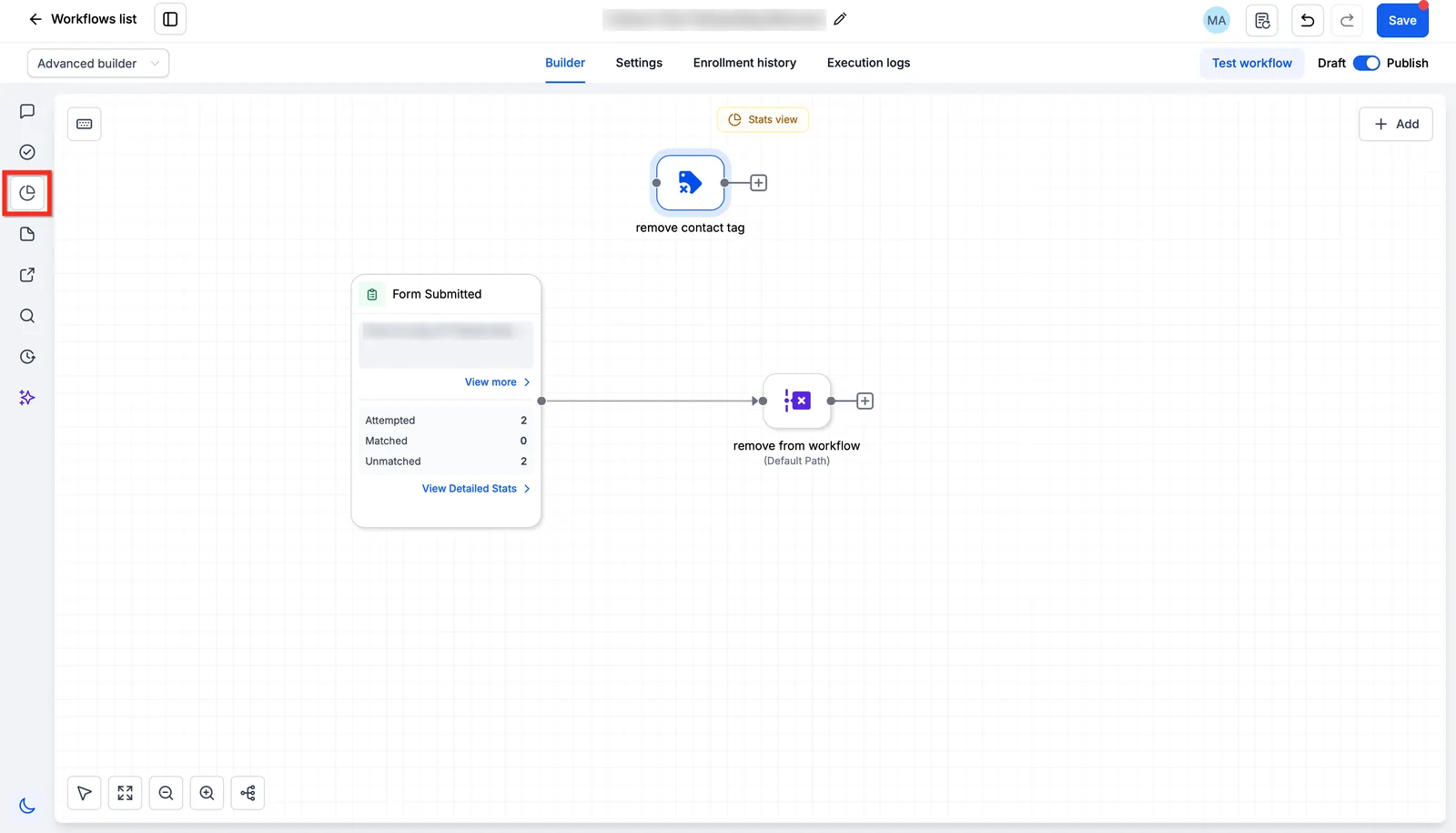
Testing with a fresh contact every time avoids the re-entry trap: a contact who already ran the flow once will not re-enrol unless you reset the goal or the re-entry setting.
Prevention: 5 Automation Health Habits
The best fix is the one you never need. Add these habits to your weekly automation review:
- Check the enrolment count on every active workflow every Monday – a workflow that drops to zero needs attention.
- Keep a test contact per workflow that you run through monthly.
- Log integration expiry dates and re-authenticate before tokens expire.
- Document webhook endpoints – so when an app changes URLs you know what to update.
- Set a manual review step in your most important client workflows.
GoHighLevel also has a Marketplace of pre-built templates and app integrations that can replace fragile custom webhooks. It is worth reviewing what you build manually: compare GHL against alternatives like ActiveCampaign or HubSpot if you find yourself fighting the platform constantly.
GoHighLevel Automation Fix FAQ
Why is my GoHighLevel automation not running? Check whether the workflow was left in Draft or Paused, whether a filter condition can ever be true, whether re-entry settings prevent a contact from enrolling again, whether a wait step is holding contacts indefinitely, or whether a connected app has stopped responding. Check the enrolment count and workflow history first.
How do I know if my GoHighLevel workflow is actually published? Open Workflows and look at the status badge. If it shows Draft or Paused, no contacts enrol. Publish it, then test with a fresh contact to confirm the trigger fires.
Why does my workflow show no enrolments even though the form is being submitted? The trigger event may not match the form’s location, or the entry filter excludes the new contact. Check the trigger source and filter conditions.
Why are my GoHighLevel contacts stuck on a wait step? Wait steps evaluate time windows in the location timezone; an agency/sub-account timezone mismatch or a long duration can make it look stuck. Check the scheduled time of the next action.
How do I fix broken integrations in GoHighLevel workflows? Restore the connection credentials, confirm the endpoint URL and JSON payload, then review the history log for the specific HTTP status code. Update the endpoint and re-test.
How do I test a GoHighLevel workflow without messaging real leads? Create a test contact with your own email/phone, match the trigger tag, and run the workflow in Test Mode. Watch the history step by step, then delete the test contact.
Why did my GoHighLevel email or SMS action fail in a workflow? Email fails when LC Email/SMTP is not connected or the domain is unverified; SMS fails when the contact has no valid phone number or the carrier rejects the sender ID. See the action error in workflow history.
Your Fix Order: Status, Filter, Re-entry, Wait, Action
Day 1: open every active workflow and confirm the status badge reads Published, not Draft or Paused. Day 3: pick your highest-volume workflow, create a test contact with your own phone and email, run it through Test Mode, and read the history step by step. Day 7: add the watchdog flow above so a broken trigger or failed action alerts you instead of a client. If email actions are also failing, work through the email not sending fix before you rebuild anything. For a broader setup walkthrough, see the automation setup guide and the beginner tutorial.
If you are still evaluating GoHighLevel, start with the free 14-day trial and build one test workflow with a trigger, a wait step, and an email action before committing real campaigns. Compare it with HubSpot or other marketing automation platforms if you need a more traditional visual builder. And if email sending is also failing inside your automations, read our email not sending fix guide – the two issues often show up together.
Disclaimer: We are an independent review site. Some links in this article are affiliate links, and we may earn a commission at no extra cost to you if you purchase through them. We only recommend tools we test in real client operations.
About the Author

Antonio Vance is B2B SaaS Operations Director & Lead Reviewer (SaaSFlowLab Editorial Team). He has spent 8+ years deploying and auditing enterprise CRM, marketing automation, and email deliverability infrastructures for digital agencies. At SaaSFlowLab, he directs hands-on testing of software stacks in live production environments to deliver uncompromised, field-verified software reviews.