

Executive Summary
Wondering why your messages vanish the moment you hit send? When GoHighLevel email not sending happens, the fault usually sits in one of five spots: SMTP settings, authentication records, sending limits, a workflow that never fires, or a suppressed contact. The good news is that each one leaves a visible clue in Settings. This guide gives you the 12-step diagnostic order, shows where to look under Email Services, explains how to check SPF, DKIM and DMARC, and covers the tests that keep campaigns out of spam in 2026.
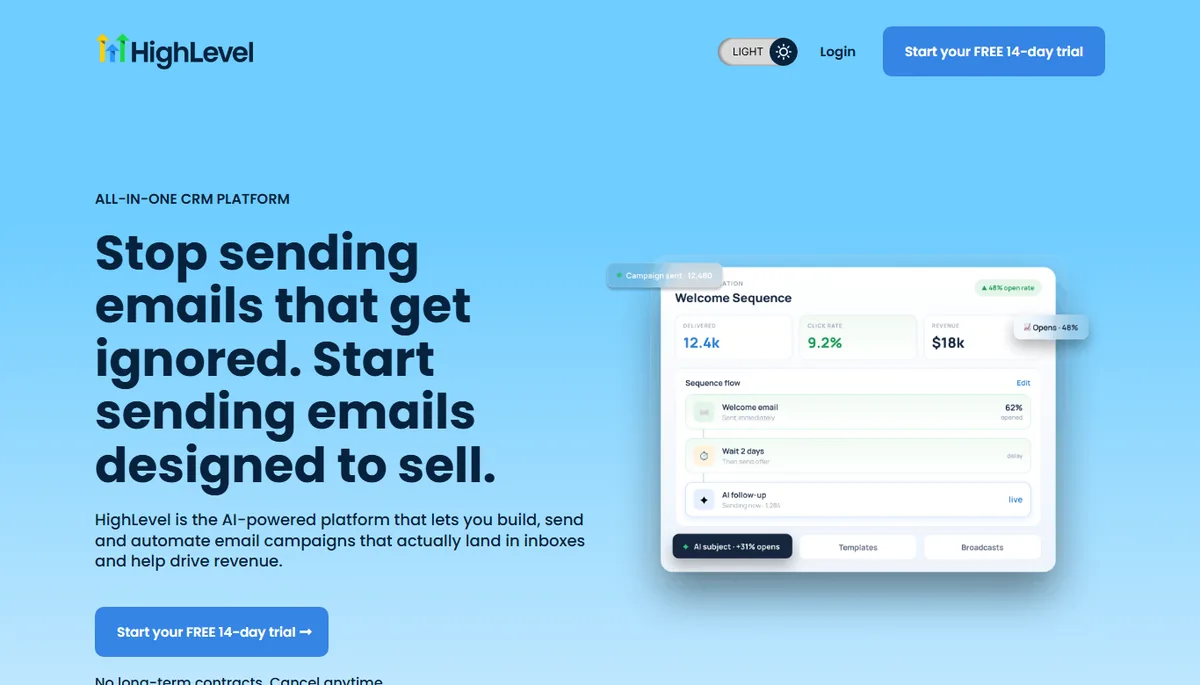
Before you rip out your email provider, understand this: GoHighLevel does not silently lose emails in most cases – it fails loudly in one specific setting. The fix is usually a combination of DNS records and a single SMTP toggle. Here is the exact order to diagnose it without wasting a week of campaigns. See our GoHighLevel pricing review 2026 if you are still deciding whether the platform is worth the setup effort.
Table of Contents
- Quick Diagnosis: Where Is It Failing?
- Check 1: SMTP Configuration Status
- Check 2: SPF, DKIM and DMARC Records
- Check 3: Domain Verification in Your ESP
- Check 4: Sending Limits
- Check 5: LC Email Specific Issues
- Check 6: Workflow and Automation Issues
- Build a Self-Checking Email Health Workflow
- Two Scenarios: A Clinic and a Coaching Studio
- Check 7: Suppressed Contacts and List State
- Check 8: Queue Backlogs
- Why Emails Go to Spam (and the Fix)
- LC Email vs Mailgun (When to Switch)
- Deliverability Test Checklist
- FAQ
- Your Email Fix Checklist Before the Next Campaign
Quick Diagnosis: Where Is It Failing?
Start with the fastest possible signal. Open Settings > Email Services in the sub-account that is failing. GoHighLevel shows the connection status, the sending domain, and any error on that screen. The four places you will most often see a failure:
| Symptoms | Where to fix | Root cause |
|---|---|---|
| No SMTP configured | Go to Settings > Email Services and connect LC Email or a custom SMTP/ESP | Missing provider |
| Authentication error | Username or password for the SMTP server is wrong or changed | Credentials |
| Domain not verified | SPF/DKIM/DMARC not published or pending | DNS records |
| Sending disabled | Sub-account or contact is suppressed / sender blocked | Risk flags |
If you see an error banner, copy the exact message – it usually contains the failing record (e.g. SPF record missing for mail.yourdomain.com). That one line tells you which step below to jump to.
Check 1: SMTP Configuration Status
The single most common cause of GoHighLevel emails not sending is an SMTP provider that is switched off or misconfigured. Go to Settings > Email Services > SMTP Providers:
- Check the provider toggle is ON for the sub-account (LC Email, Mailgun, SendGrid, or a custom SMTP).
- Confirm the host and port – for custom SMTP this is usually smtp.yourdomain.com on port 587 (STARTTLS) or 465 (SSL).
- Test the credentials – use the Test Connection button; a failed send means the username/password are wrong or the server rejects you.
- Verify the From address matches the sending domain you authenticated.
When credentials pass but sends still fail, move to DNS. Skip to Check 2.
Check 2: SPF, DKIM and DMARC Records
This is where most GoHighLevel deliverability problems live. If your SPF or DKIM record is missing, emails will either bounce or land in spam. Three records to verify on your sending domain:
| Record | Example | Purpose |
|---|---|---|
| SPF | v=spf1 include:mailgun.org include:_spf.google.com ~all | Which servers are allowed to send for you |
| DKIM | Generated in your ESP, published as a TXT record | Digitally signs your emails to prove authenticity |
| DMARC | v=DMARC1; p=none; rua=mailto:you@domain.com | Policy for receivers when SPF/DKIM fail |
Inside GoHighLevel, open the domain under Email Services > Mailgun Domain / Sending Domain, copy the exact values it gives you, and publish them in your DNS provider. Wait 15-30 minutes, then hit Verify. Passing SPF and DKIM while still landing in spam? Go to the spam section below.
Check 3: Domain Verification in Your ESP
If you use Mailgun or SendGrid, the sending domain must be fully verified inside the ESP itself, not just in GHL. Open your Mailgun dashboard / SendGrid settings:
- Mailgun: Domains > your domain > check that DNS status shows all records green.
- SendGrid: Settings > Sender Authentication > Domain Authentication > verify the DNS records.
- If the domain shows Pending, the DNS has not propagated or was copied wrong.
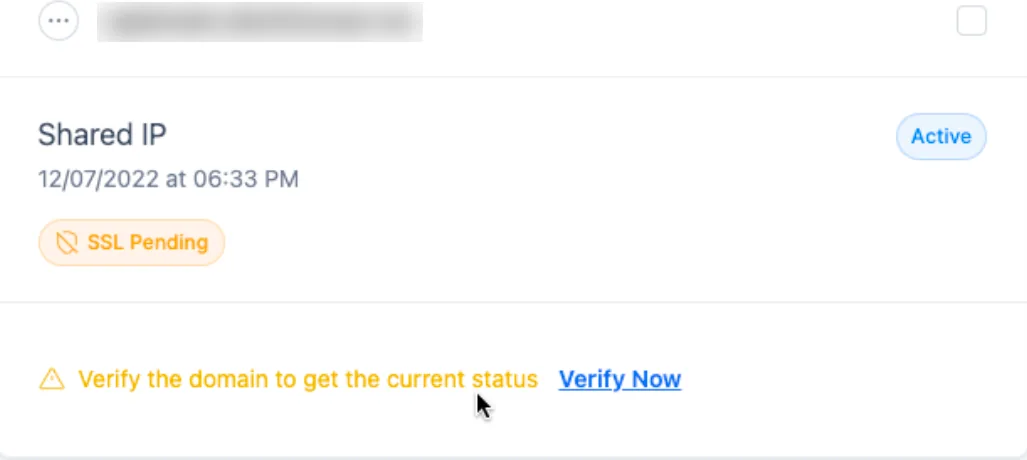
A common trap: your root domain is verified in Mailgun but the subdomain you use for sending (e.g. mail.yourdomain.com) has its own set of records. Treat them as separate domains.
Check 4: Sending Limits
GoHighLevel and your ESP both impose daily and per-minute sending limits. If you hit them, emails queue and eventually fail with a rate limit exceeded error. Where to check:
| Provider | Where limits live | Typical limit 2026 |
|---|---|---|
| LC Email (included) | Check plan limits in GHL billing/usage | ~1K-10K/day depending on plan |
| Mailgun | Sending limits per domain in the dashboard | Free tier 100/day, paid higher |
| SendGrid | Plan-based limits in Sender Authentication | 50K default on Pro, more with dedicated IP |
| Gmail/Google Workspace | Connected inboxes (via LeadConnector for Gmail) | ~2,000/day, 500 for new accounts |
If you are bulk-sending to 100+ contacts through a free Gmail connection, that is almost certainly the reason. Move to LC Email or a proper ESP for campaigns, and keep Gmail for one-to-one replies.
Check 5: LC Email Specific Issues
LC Email (Lead Connector Email) is GoHighLevel’s built-in provider. It has specific quirks:
- Sub-account email not enabled: enable it once per sub-account under Email Services.
- LC Email daily limits: lower than some paid ESPs – check the current plan cap before large sends.
- LC Email outages: if the status page shows an incident, sends stop – pause campaigns and retry later.
- Custom domain needed for serious sending: using the default shared sending domain hurts deliverability.
If you rely on LC Email and send high volumes, moving to a dedicated Mailgun domain is the single highest-ROI fix. See LC Email vs Mailgun below.
Check 6: Workflow and Automation Issues
Emails that should send but never arrive are often a workflow problem, not an SMTP problem. Verify the automation is firing:
- Open Workflows and confirm the workflow is Published, not paused or draft.
- Check the trigger – the event that starts the flow (form submit, tag added, date reached) must match the contact’s journey.
- Inspect the email action – the From email, template, and send condition must be valid.
- Use Test Mode – run the workflow with a test contact and confirm the email step completes.
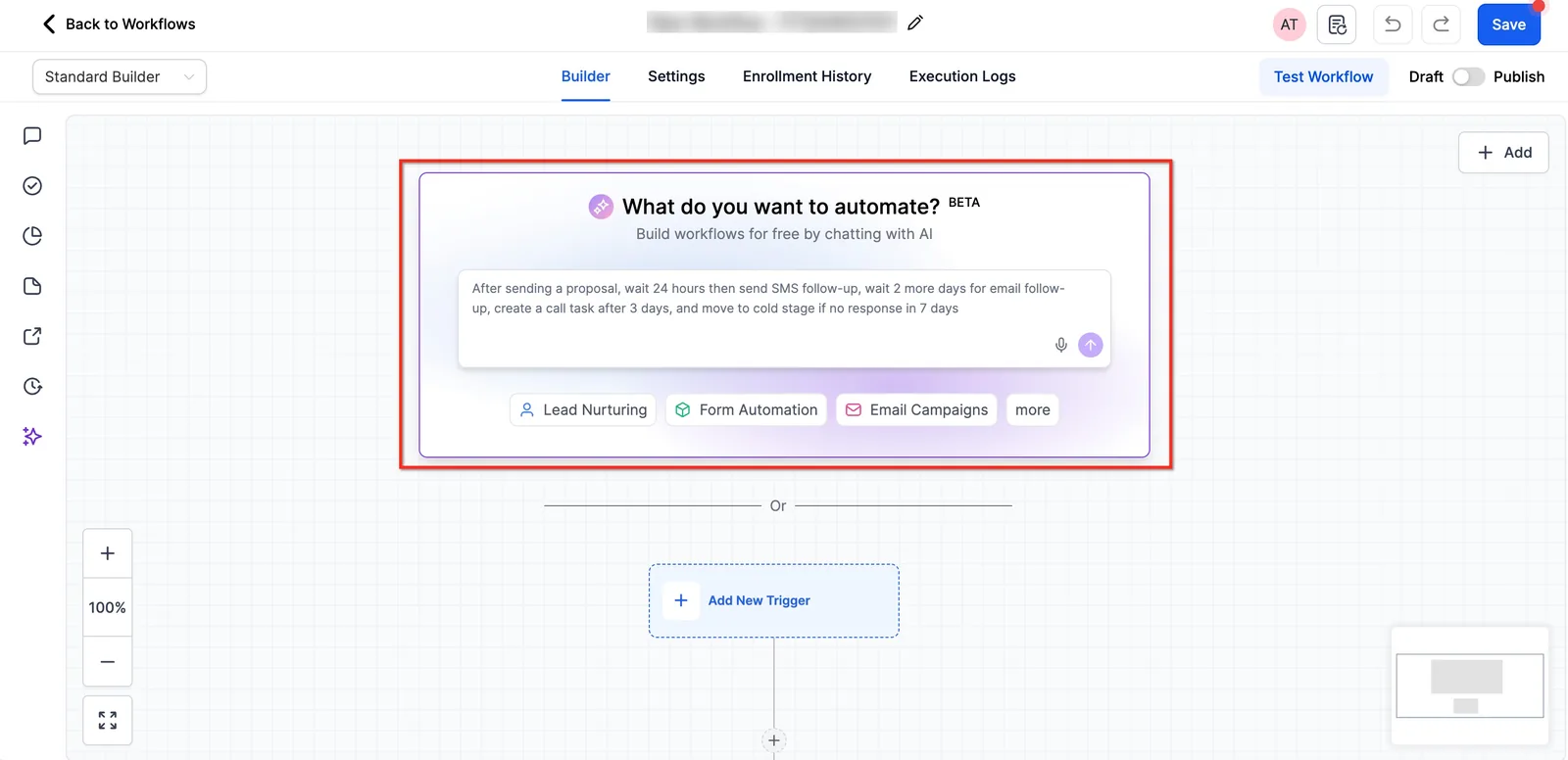
A workflow that worked yesterday and stopped today is usually a changed trigger or updated template. Review the workflow’s activity log to see which step failed first.
Build a Self-Checking Email Health Workflow
You can turn the manual checks into a workflow that watches for failures and alerts you before a campaign goes out. If the flow itself refuses to fire, the automation troubleshooting steps cover the trigger side.
- Trigger: Form Submitted (Email Health Check form on your internal page).
- Action: Send Email to your admin address with the subject ‘Email health check started’ and a body listing the domain and sender to verify.
- Action: Add Contact Tag ’email-check-running’.
- Wait: 30 minutes, giving DNS changes time to propagate.
- Action: Webhook to your DNS lookup tool, passing the sending domain and the expected SPF and DKIM values.
- If/Else: webhook response contains ‘pass’ for both records. If yes, go to the next step. If no, send SMS to the admin: ‘SPF or DKIM still failing on {{contact.email_domain}}. Re-copy the record from Email Services and verify again.’
- Action: Send Email to a Mail-Tester address with a sample campaign message.
- Wait: until the contact replies, capped at 24 hours.
- If/Else: reply score is 8 or higher. If yes, remove tag ’email-check-running’ and create an opportunity in the ‘Deliverability OK’ stage. If no, add tag ’email-risk’ and send an internal notification to the account owner.
- Action: Add Task for the owner: ‘Review spam score and clean list before next broadcast’, due in two days.
Measure three numbers: the share of checks that pass on the first run, the average time between a failed check and a fixed record, and the bounce rate on the next campaign. A falling bounce rate after each check is the signal that the workflow is doing its job.
Two Scenarios: A Clinic and a Coaching Studio
These are illustrative scenarios, not reports of real accounts. They show how the checks above play out in daily work.
Imagine a dental clinic in Austin, Texas, with three hygienists and one office manager. The clinic sends 1,800 appointment reminders a month through a Gmail inbox connected to GoHighLevel. New patient confirmations start failing, and the front desk blames the software. The office manager opens Settings > Email Services and sees the Gmail connection is still active but the daily cap is near 2,000. She moves campaigns to LC Email with a verified subdomain, keeps Gmail for one-to-one replies, and publishes SPF and DKIM. If the switch restores 40 reminder emails a week and each saved visit bills $150, that is $6,000 a month in recovered chair time.
Imagine a business coaching studio in Denver, Colorado, with two coaches and a list of 6,000 leads. A welcome workflow stopped sending after a template edit. The owner opens the workflow, sees it is still published, and runs it in test mode. The email action points to a From address on a domain that was never verified. He fixes the sender, re-verifies the domain, and re-runs the test. If the welcome sequence reaches 300 new leads a month and 5 percent book a paid call at $200, the repaired flow protects $3,000 in monthly pipeline.
Check 7: Suppressed Contacts and List State
Sometimes the email is not failing at all – the contact is blocked. GoHighLevel suppresses contacts who unsubscribed, bounced, or were marked spam. Check:
- Contact’s subscription status – open the contact and confirm they are subscribed.
- Suppression list – under Settings > Emails, review bounced and unsubscribed addresses.
- Lead score / risk flags – contacts flagged as high-risk may be excluded from sends.
- Tags and lists – the workflow may target a tag the contact does not have.
If the recipient is suppressed, re-subscribe deliberately and re-send. This is the most overlooked fix – it costs zero DNS changes and solves many “email not sending” tickets.
Check 8: Queue Backlogs
When many emails are queued at once (e.g. a broadcast after a long pause), sends can lag behind or drop. Symptoms: emails stuck in the outbox, delayed deliveries, or a growing queue count.
- Check the queue – email logs / activity feed shows queued items and timestamps.
- Reduce batch size – split large campaigns into smaller chunks over time.
- Verify the queue is not due to rate limits – if the provider is the bottleneck, see Check 4.
- For urgent sends, prioritize transactional emails over marketing broadcasts.
Queue backlogs usually resolve on their own once volume drops, but they are a strong signal to spread sends and warm up the domain.
Check 9: Escalation Path (When Nothing Works)
If you have run all eight checks and emails still fail, it is time to escalate with the official channels instead of guessing. GoHighLevel’s support portal has dedicated email and deliverability articles, and a support ticket with your test results gets answered much faster:
- Search the Knowledge Base for the exact error message you copied from Email Services.
- Open a support ticket with your SMTP provider, sending domain, and a failed test email ID.
- Check the status page for ongoing incidents affecting email delivery.
- Ask in the community – other users often share the same fix within hours.
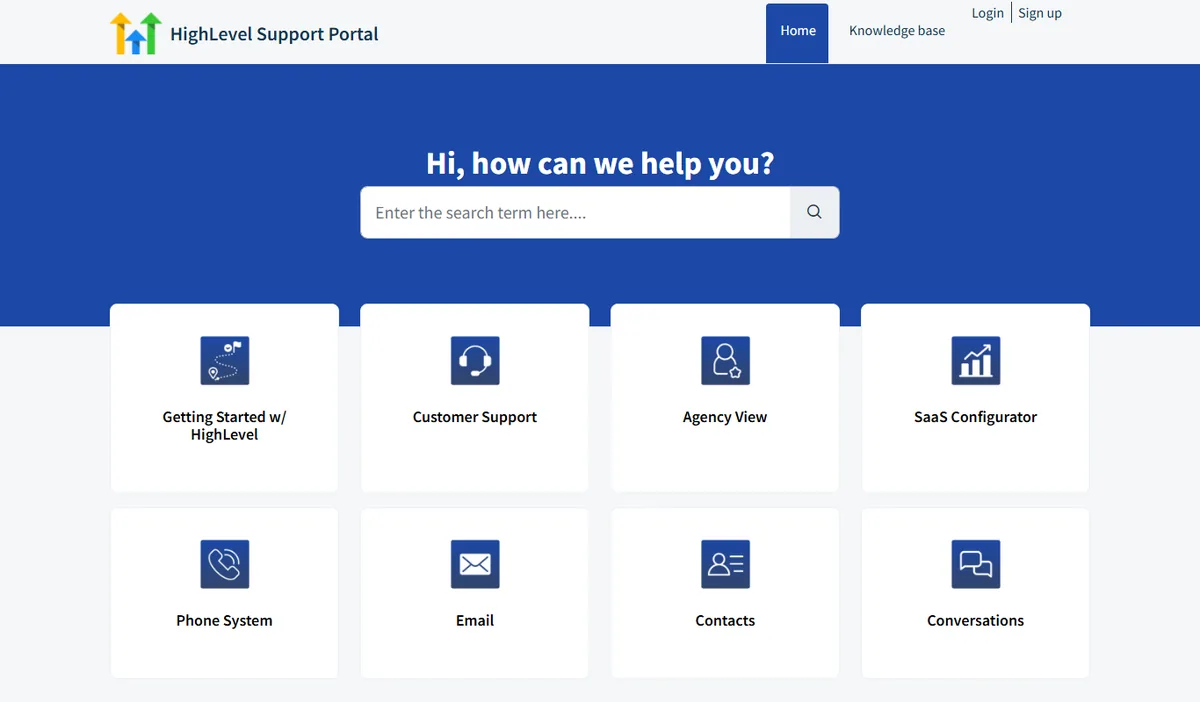
For agencies running client campaigns, treat email troubleshooting as a client-facing SLA: document the checks you ran, keep the error messages, and escalate early. The support portal is the fastest route when config looks correct but sends still fail.
Why GoHighLevel Emails Go to Spam (and the Fix)
The email sends, but it lands in spam. That is a reputation problem, and it is separate from the SMTP checks above. The fix order:
- Use a dedicated sending subdomain (e.g. email.yourdomain.com) so your main domain reputation is not hurt.
- Publish SPF, DKIM and DMARC (start with p=none, then tighten to p=quarantine).
- Warm up the domain – start with 20-50 emails/day, increase gradually over 2-4 weeks.
- Clean your list – remove hard bounces, unengaged contacts, and risky purchased lists.
- Fix content signals – avoid spammy subject lines, excessive links, and image-only emails.
- Monitor engagement – keep complaint rate under 0.1% and watch open/click rates.
Test deliverability with Mail-Tester: send a test email to the address it gives you, then read the score. It tells you exactly which authentication or content signal is hurting you.
LC Email vs Mailgun (When to Switch)
| Option | Pros | Cons |
|---|---|---|
| LC Email (included) | Free with plan, easy to enable, fine for low volume | Shared reputation, limits, less control |
| Mailgun (own account) | Dedicated domain control, better warm-up, higher limits | Extra cost, needs DNS + billing |
| SendGrid | Strong deliverability analytics, good for transactional | Cost, learning curve |
The practical rule: if you send under ~1,000 emails/month for simple follow-ups, LC Email is fine. If you run real campaigns, bring your own Mailgun or SendGrid. The setup takes one afternoon and fixes most spam issues permanently.
Deliverability Test Checklist
Before you send your next campaign, run this fast checklist. If every item passes, deliverability is not your bottleneck:
- SMTP provider on in Settings > Email Services (LC Email or custom ESP connected).
- SPF, DKIM, DMARC all green – verified in GHL and in your ESP dashboard.
- Sending domain verified and at least 2 weeks old with warm-up schedule.
- Limits respected – daily volume under your plan cap.
- Workflow published and tested with a test contact.
- No suppressed contacts in the target segment.
- Queue empty or under control.
- Mail-Tester score >= 8/10 on a live test send.
GoHighLevel Email Fix FAQ
Why is GoHighLevel not sending my emails? The most common causes are SMTP misconfiguration, incorrect credentials, incomplete domain verification (SPF/DKIM/DMARC), reaching sending limits, contact suppression, or workflow triggers not firing. Check Settings > Email Services for the exact error.
How do I know if my GoHighLevel SMTP is configured correctly? In Settings > Email Services, confirm the SMTP host, port, username and password are correct, run a test send, use Mail-Tester, and verify the domain status shows Connected rather than Pending.
Why are my GoHighLevel automated emails not sending? Automated emails fail when the workflow is not published, the trigger never fires, the contact is suppressed, or an email action is misconfigured. Run the workflow in test mode to isolate the step.
Do I need Mailgun for GoHighLevel emails to work? No. LC Email works out of the box. For high volume or deliverability-critical sending, bringing your own Mailgun or SendGrid with a dedicated sending domain gives more control.
How do I set up SPF, DKIM and DMARC for GoHighLevel? Add the SPF record from GHL to DNS, generate a DKIM key in your provider, publish a DMARC policy (start with p=none), then verify inside GHL until the domain shows Connected.
Why are my GoHighLevel emails going to spam? Spam placement happens when authentication records are missing/misconfigured, the domain is new and unwarmed, list engagement is low, or content has spam triggers. Fix authentication, warm up, and clean the list.
Why do my GoHighLevel emails fail SPF and DKIM validation? SPF/DKIM validation fails when the exact DNS record GHL gave you is missing, has a typo, or was published on the wrong host record (e.g. the root domain instead of the sending subdomain). Re-copy the record and verify with a DNS lookup tool.
Why does GoHighLevel say my emails are bounced? Bounces happen when the recipient address is invalid, the mailbox is full, or the sending domain failed authentication. GoHighLevel marks the contact as bounced automatically to protect your reputation, and you can un-suppress them after fixing the address.
Your Email Fix Checklist Before the Next Campaign
Day 1: open Settings > Email Services, copy the exact error, and confirm the SMTP provider is on. Day 3: verify SPF, DKIM and DMARC on the sending subdomain, then run a Mail-Tester send and aim for 8/10 or higher. Day 7: publish the health-check workflow, clear suppressed contacts from your next segment, and split large broadcasts into smaller batches. Keep the beginner setup guide open while you work, and read the slow performance fix guide if sends lag even after every check passes.
If you are still on the fence about GoHighLevel itself, start with the free 14-day trial and test the email tools with a real mini campaign before committing. Compare deliverability-focused alternatives like ActiveCampaign or HubSpot if you want an ESP-first stack, or read our GoHighLevel vs HubSpot breakdown. The platform is powerful – but only once your deliverability foundation is solid.
Disclaimer: We are an independent review site. Some links in this article are affiliate links, and we may earn a commission at no extra cost to you if you purchase through them. We only recommend tools we test in real client operations.
About the Author

Antonio Vance is B2B SaaS Operations Director & Lead Reviewer (SaaSFlowLab Editorial Team). He has spent 8+ years deploying and auditing enterprise CRM, marketing automation, and email deliverability infrastructures for digital agencies. At SaaSFlowLab, he directs hands-on testing of software stacks in live production environments to deliver uncompromised, field-verified software reviews.